Senedfor Restaurants
ع EN FR

The order travels from the floor to the kitchen, with no internet.

Sened runs your restaurant from your own device: orders, kitchen display, inventory, expenses and reports. Waiter and kitchen devices connect over the restaurant's local network, and the data never leaves the restaurant except in a backup you choose to make.

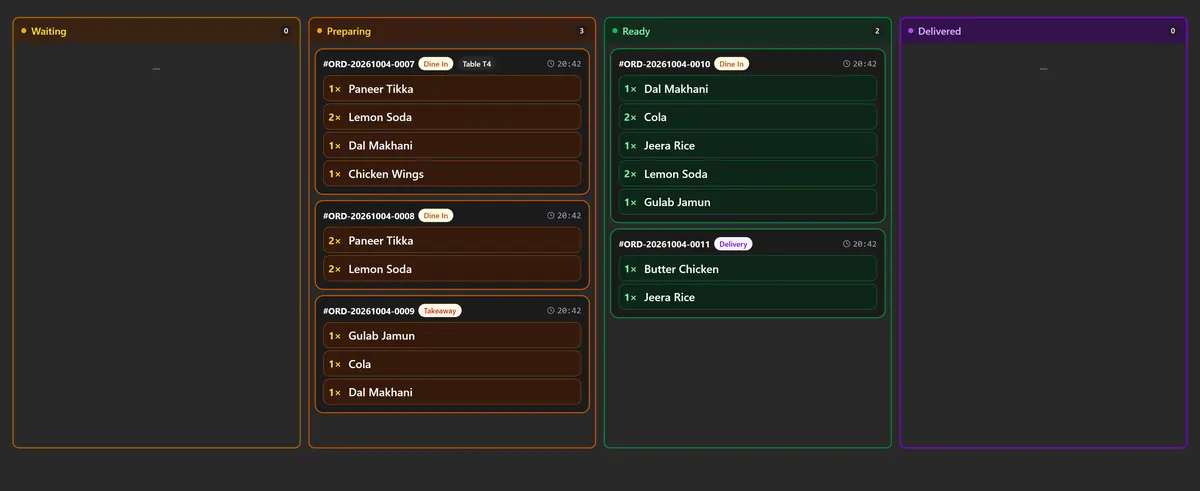
This is how the kitchen sees orders: ticket number, table, items, and how long they have waited.

What it does

A full day of restaurant operation

From opening the floor to closing the till. The tag on the right shows where each part runs.

  • Orders and till

    Take the order, handle tables and takeaway, payment and invoice, and close the day.

    on the device
  • Kitchen display

    The ticket reaches the cook the moment it is entered, and moves between New, Cooking and Ready.

    local network
  • Inventory and purchases

    Quantities, materials and suppliers, so you know what ran out before the cooking stops.

    on the device
  • Expenses and reports

    Operating costs, the day's sales and profit, in reports you can read and print.

    on the device
  • Staff accounts

    Each employee gets an account and the permissions the owner sets, and sees nothing beyond the job.

    owner sets it
  • Backup and restore

    A local copy always, and a copy in Google Drive if you choose to link your account.

    optional
  • Interface language

    Arabic with a right-to-left interface, English, and French — chosen in the store settings.

    three languages
Inside the app

Screens from a running copy, not mock-ups

These are captures of Sened running a demo store called Harbor Grill, in its English interface. The same app runs in Arabic right-to-left and in French. Tap any screenshot to open it full size.
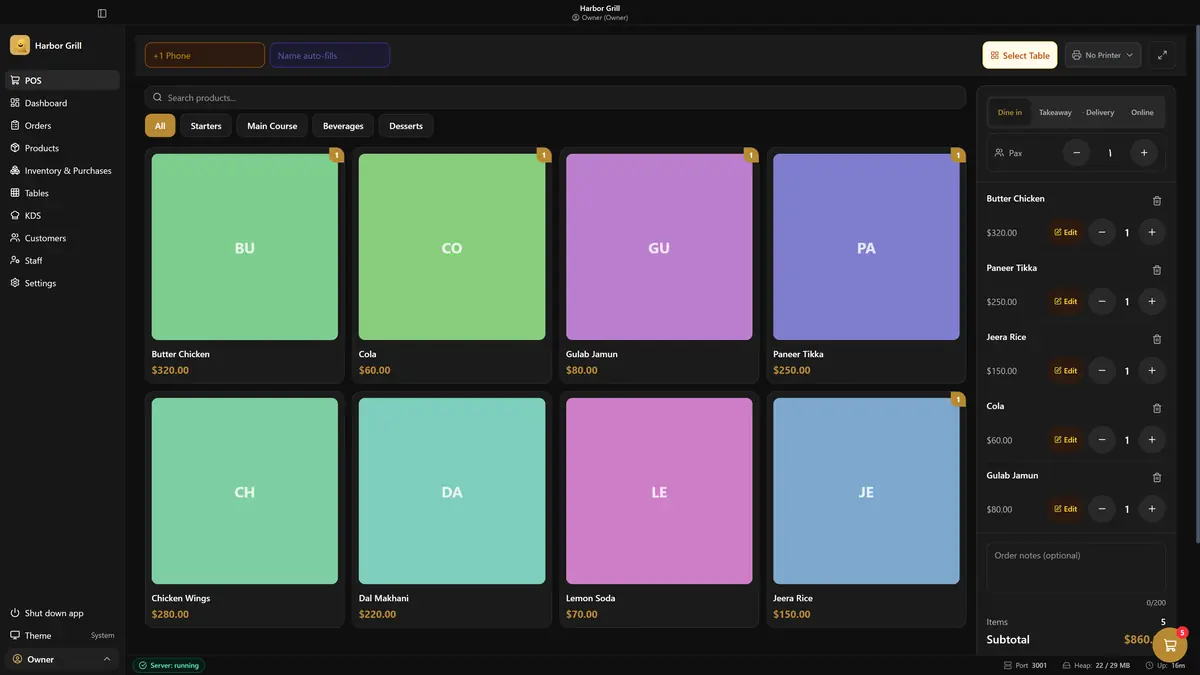
The point-of-sale screen: a grid of items in the middle, and the order bill along the side with totals and item count
Point of sale Items grouped by category, the order type set to dine in, takeaway, delivery or online, and the cover count, table and total updating with every line.
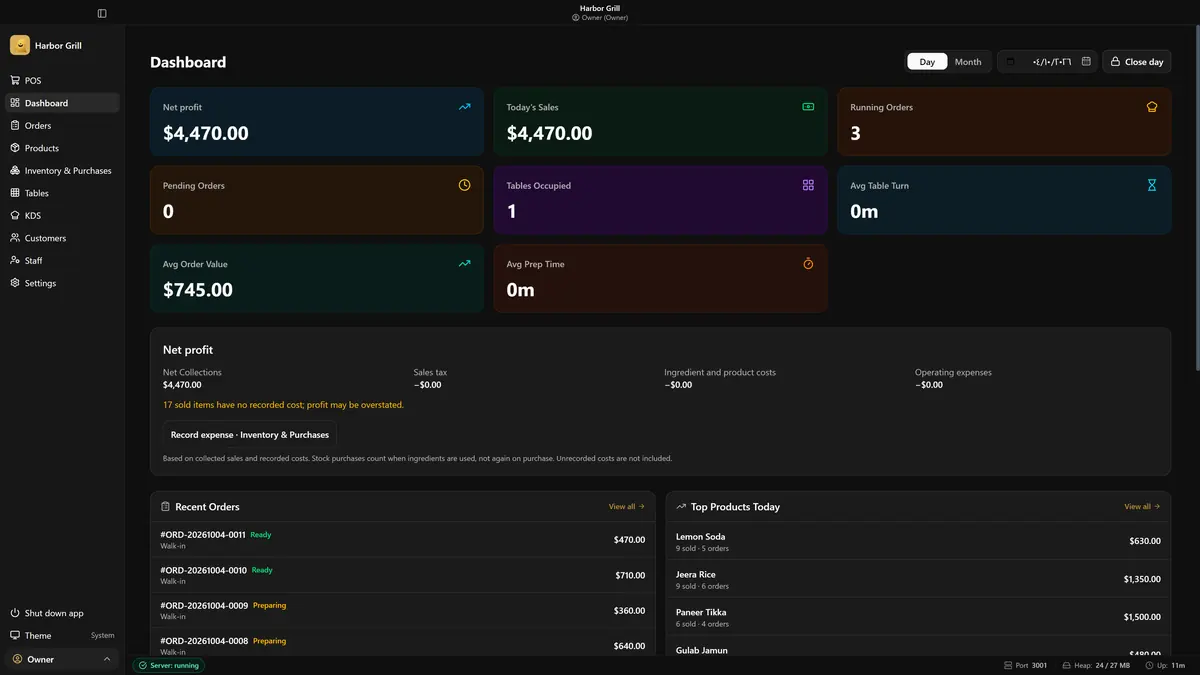
The day dashboard: net profit, today's sales, running orders and average order value, with a profit breakdown and recent orders below
The day's dashboard Today's sales, net profit, running orders and average order value, with a breakdown of what was deducted — and a plain warning when items sold have no recorded cost.
The kitchen display in four columns — Waiting, Preparing, Ready, Delivered — each ticket showing its order number and items
Kitchen display Four columns a ticket moves through: Waiting, Preparing, Ready, Delivered. Each ticket carries its number, time, order type and table.
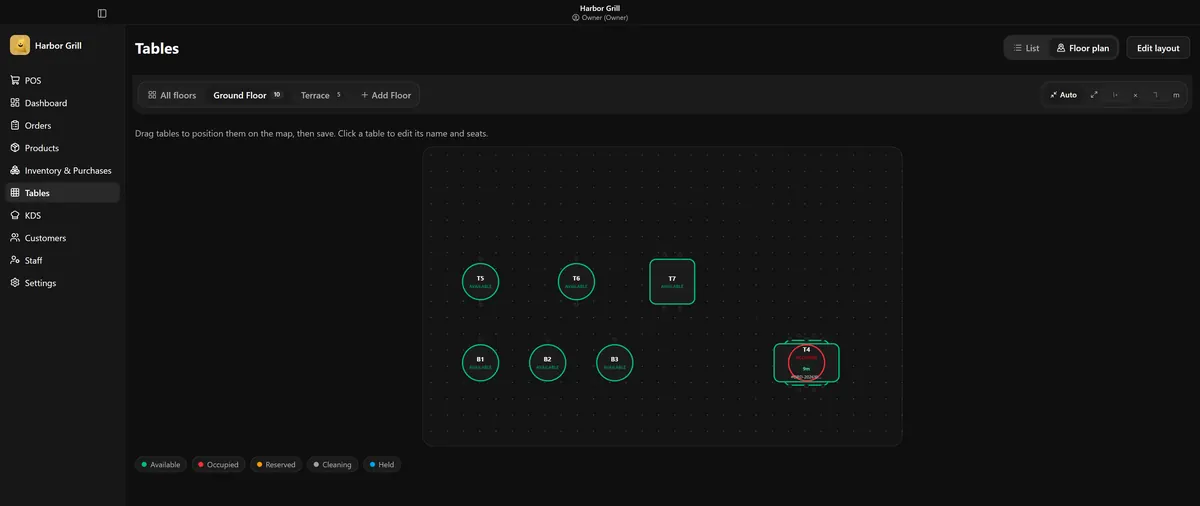
The floor plan: tables laid out on the floor coloured by status, with two floors listed above
Floor plan Tables are dragged into place on the floor map, and each colour states the table's status: available, occupied, reserved, cleaning or held.
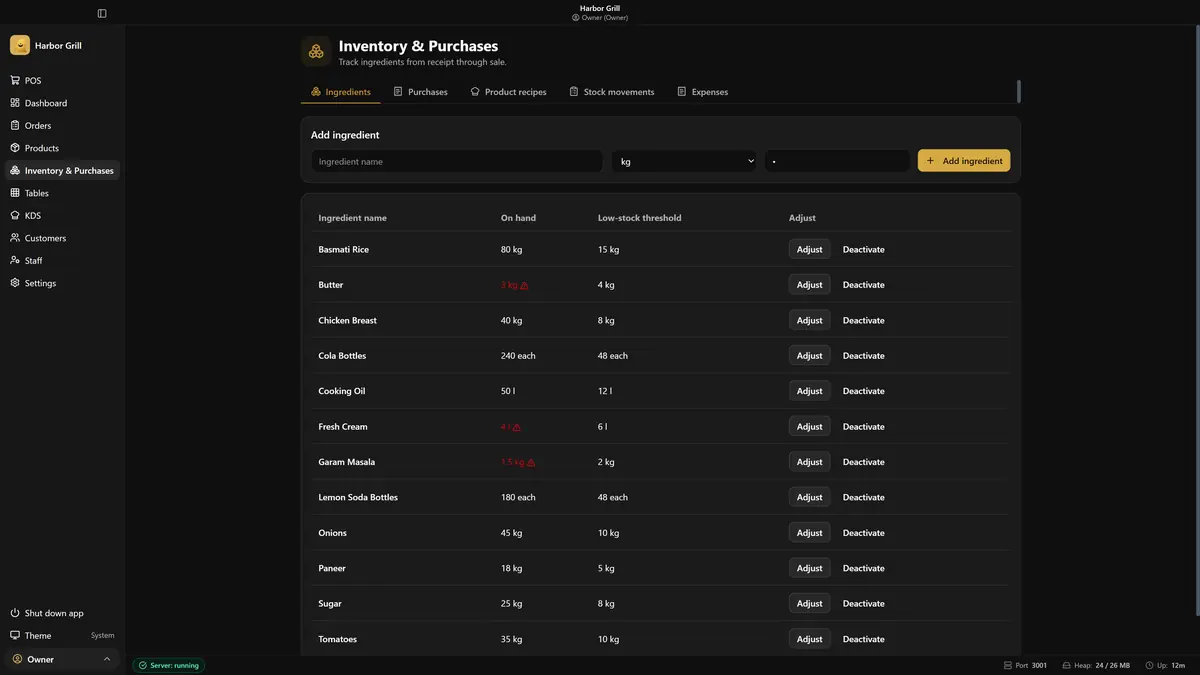
Inventory: a table of ingredients with quantities on hand and low-stock thresholds, items below threshold shown in red
Inventory and purchases Every ingredient has its unit, quantity on hand and low-stock threshold, and anything below it turns red. Purchases, recipes, stock movements and expenses sit alongside.
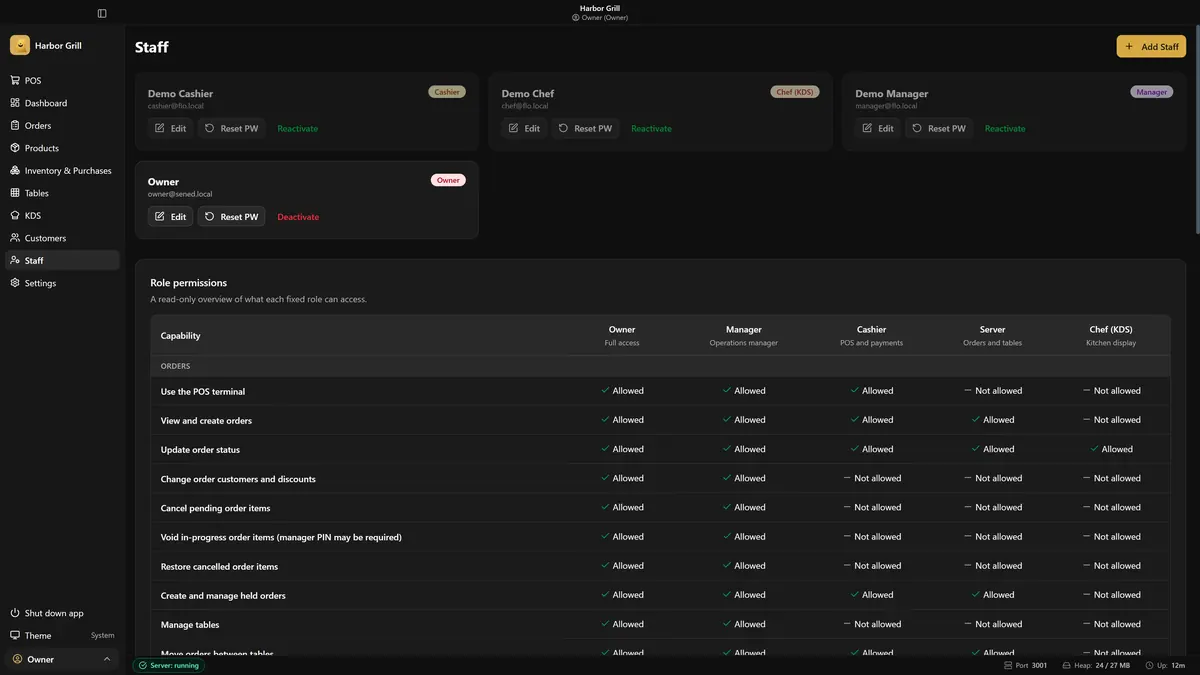
Staff accounts and the role permission matrix: capabilities as rows, roles as columns, marked allowed or not allowed
Accounts and permissions A matrix showing what each role may do, line by line: owner, manager, cashier, server, and the chef on the kitchen display.
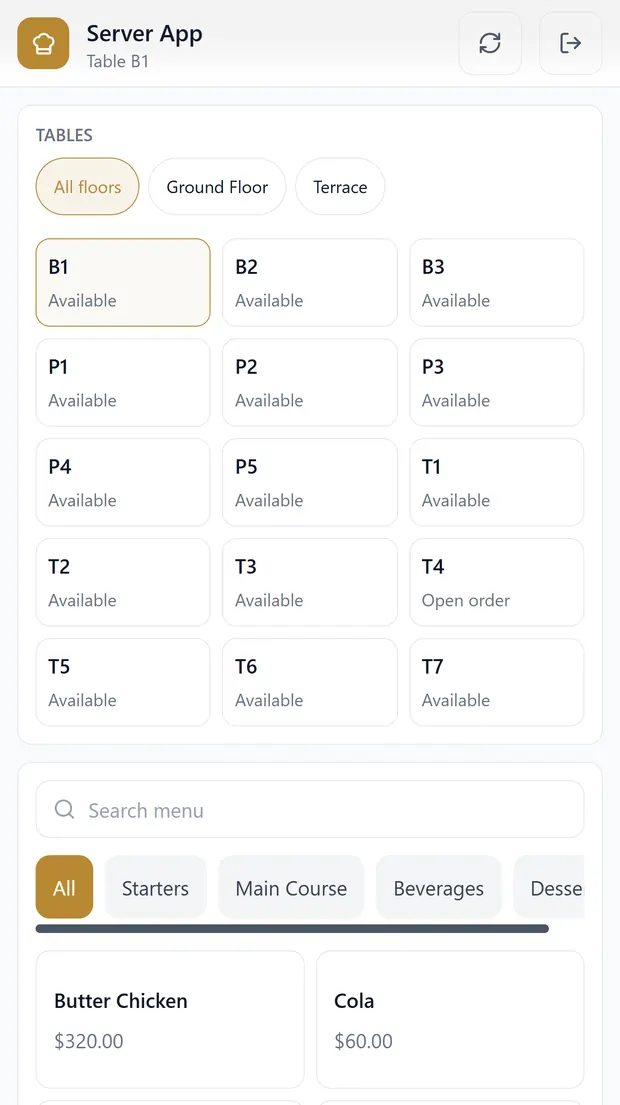
The server app on a phone: the list of tables with their statuses at the top, and the menu with prices below
The server app on a phone It opens in the browser on the server's phone over the restaurant's network, with nothing to install. Pick the table, add the items, and the order reaches the kitchen.
Setup

Three steps, with no server and no monthly subscription

  1. 01Install Sened on the restaurant's deviceThat device becomes the data centre: orders, items, inventory and reports all live there.
  2. 02Connect the waiter and kitchen devicesThey reach the restaurant's device over the local network you set up, not over the internet.
  3. 03Turn on backupA local copy is enough to start; add a Drive copy whenever you want protection beyond the device.
Google Drive permissions

What Sened asks of your account, and why

Linking is optional and is requested only if you decide to turn on cloud backup. Sened then asks for the narrowest scope that does the job — nothing more.

ScopeWhat it allowsWhy Sened needs it
drive.file Access only to files Sened created, or that the user opened through it Upload a database backup, list previous backups, download a selected backup to restore
Reading your other Drive files — Not needed, and not requested
Google data for other purposes — Never used for advertising, never sold, never transferred, never used to train models
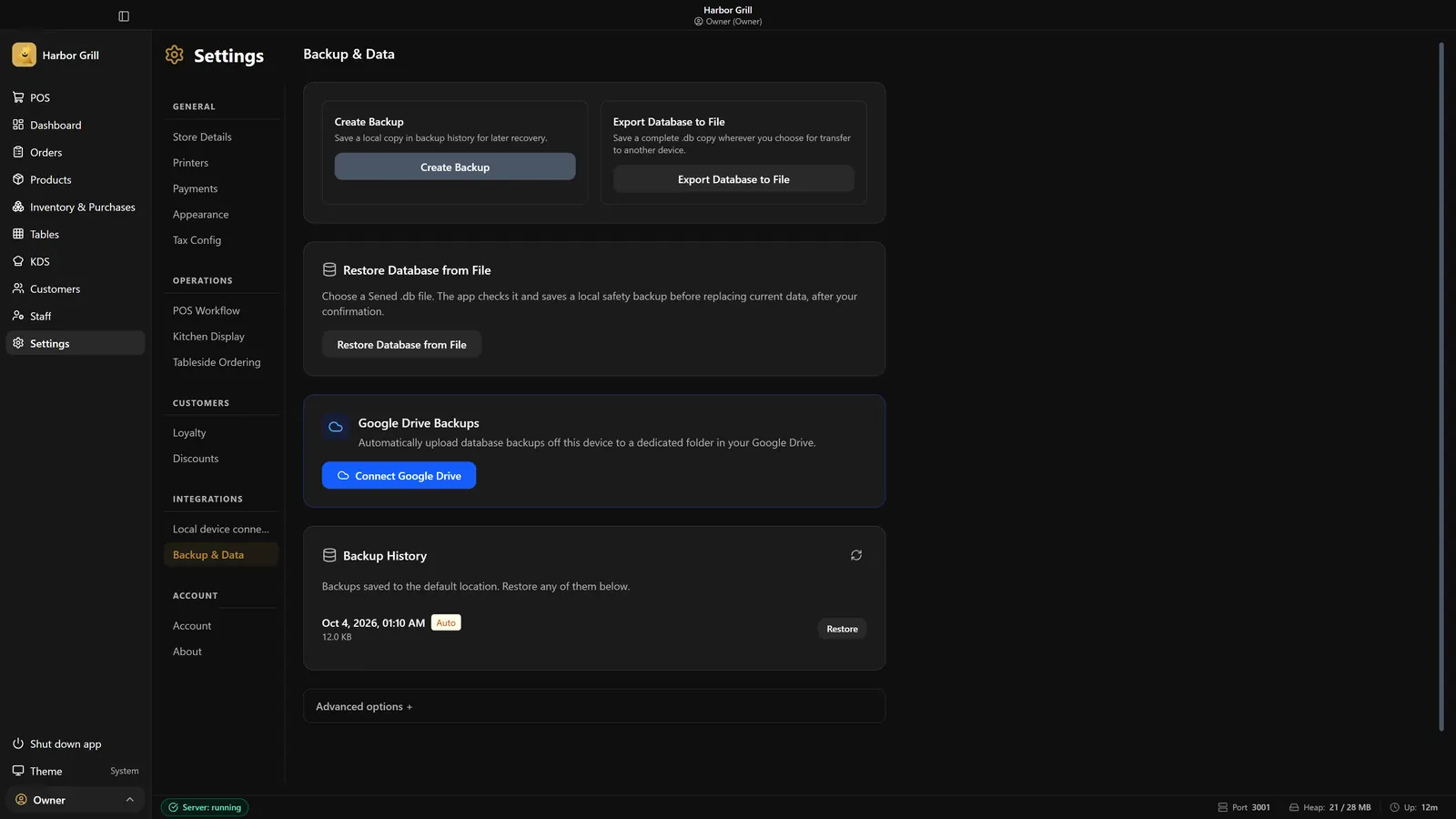
The backup screen in Sened's settings: create a backup, export the database, restore from a file, a Connect Google Drive button, and the backup history
The backup screen inside the app The local backup, the database export and the restore all work without a Google account. Linking Drive is a single button below them, asked for only if you want it, and the backup history appears once it is on.

What you should know: a backup file holds the restaurant's full data. Protect the Google account with a strong password and two-step verification, and never share backup links. You can disconnect from the app's settings at any time.

Privacy Policy · Security · Terms

FAQ

What restaurant owners ask

Do I need internet to run the restaurant?

No. Daily operation runs on the local network. Internet is needed only to upload a backup to Google Drive or restore one.

Do I need a Google account?

No. A Google account is needed only for a backup in the cloud. Without it, backups stay local.

Where is the restaurant's data stored?

In a database on the device you control. Sened does not send your restaurant's data to a server of ours or to any third party.

What happens if the device fails?

Data is restored from the most recent backup: local, or from Drive if linking is on. Test a restore from time to time — an untested backup is not a backup.

How do I delete my data?

The data is on your device and in your own Drive account, and you can delete it yourself at any time. For any privacy request, write to our support address.